
How to Backup Your DeviantArt Gallery
Published March 13, 2026
If you're a DeviantArt artist or collector, your gallery likely represents years of creative work or carefully curated art. DeviantArt doesn't provide a built-in way to download your entire gallery at once, which means your work lives exclusively on their servers. Having a local backup gives you peace of mind and makes it easy to migrate your portfolio to other platforms.
This guide walks through how to use IMGLoader to download your DeviantArt galleries, collections, and favourites as organized ZIP files.
Step 1: Connect your DeviantArt account
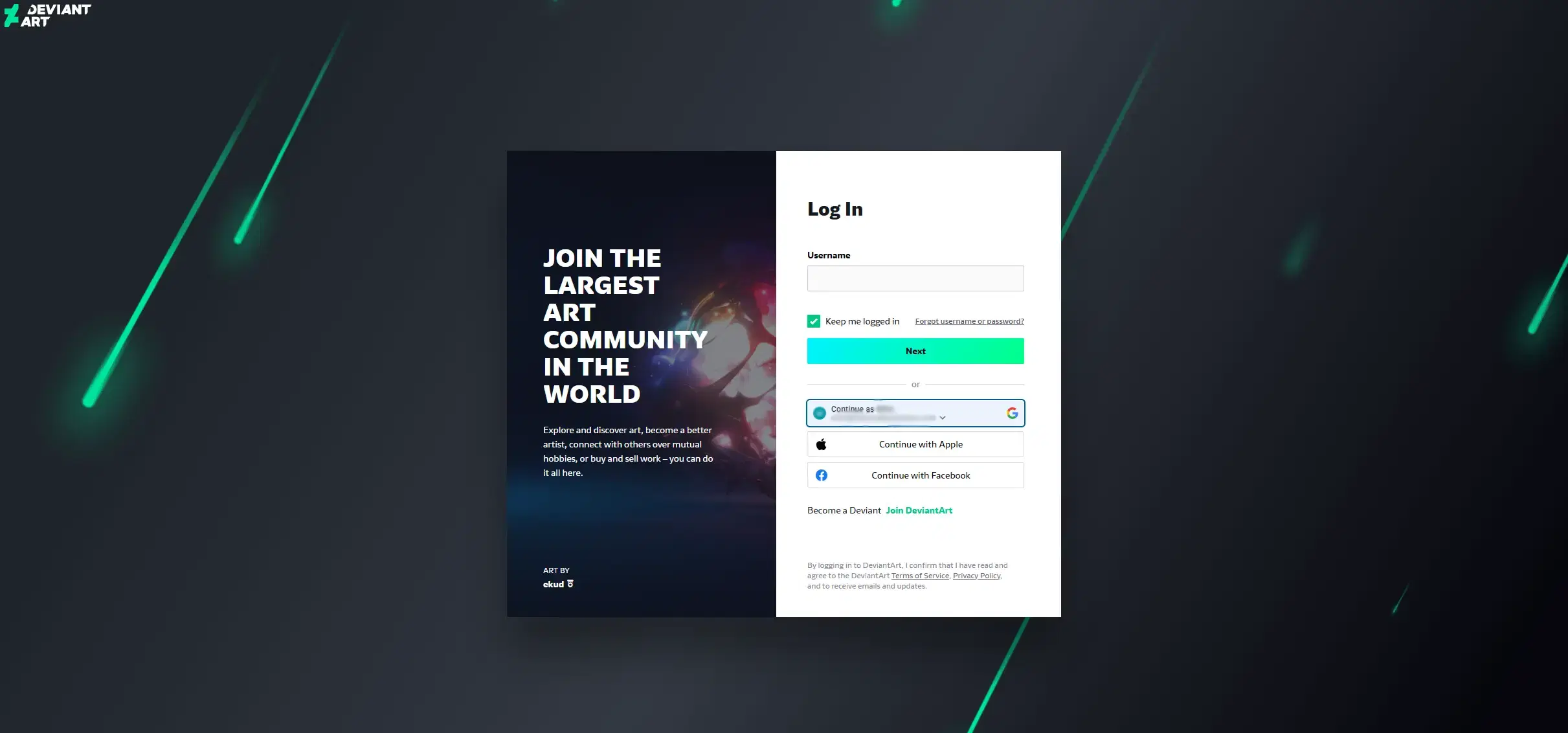
Open IMGLoader and click Connect next to DeviantArt in the Accounts section. You'll be redirected to DeviantArt's login page. Once you sign in, DeviantArt redirects you straight back to IMGLoader with your account connected — no extra permissions screens to deal with.
As with all IMGLoader connections, your DeviantArt password is never shared with IMGLoader. The connection uses OAuth, so you log in directly with DeviantArt and IMGLoader receives a secure token to access your gallery data.
Step 2: Select what to download
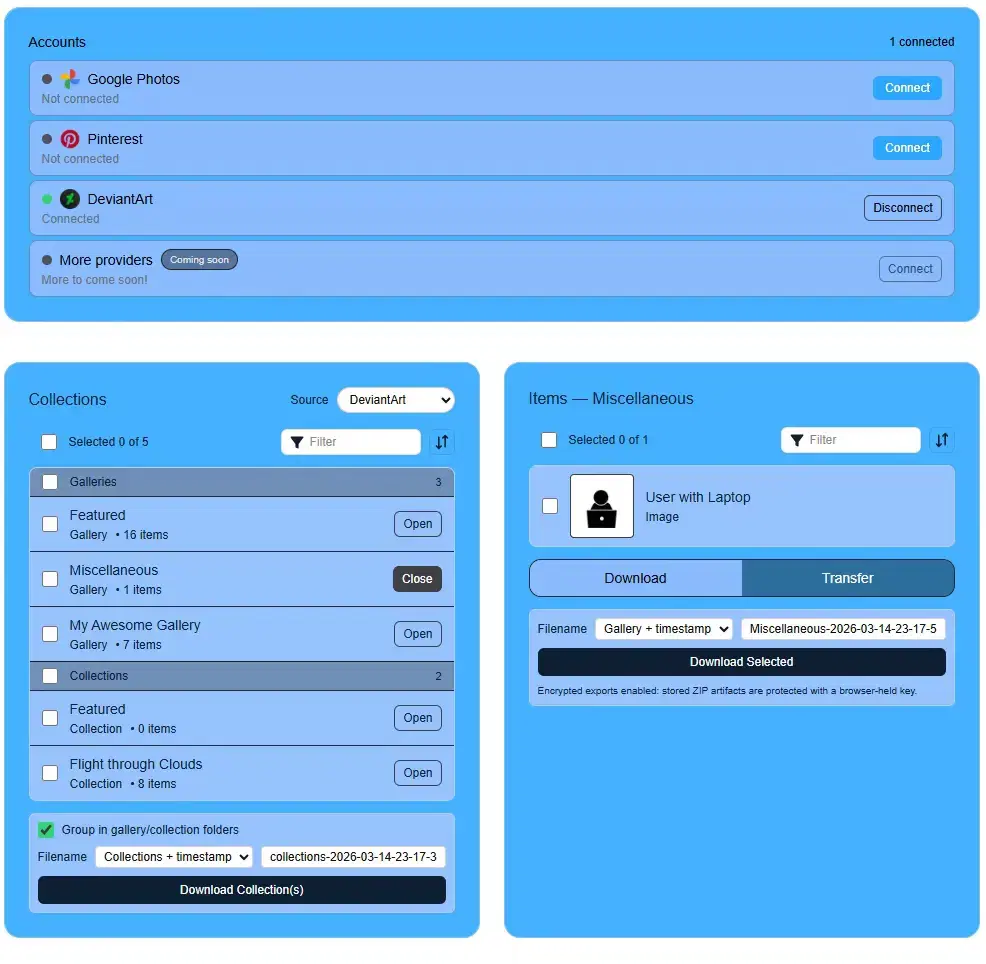
After connecting, your galleries and collections appear in the Collections panel. Before diving in, it helps to understand how DeviantArt organizes content:
- Galleries contain your own uploaded artwork (your Gallery tab on DeviantArt).
- Collections (called “Favourites” on DeviantArt) contain other artists' work that you've favourited.
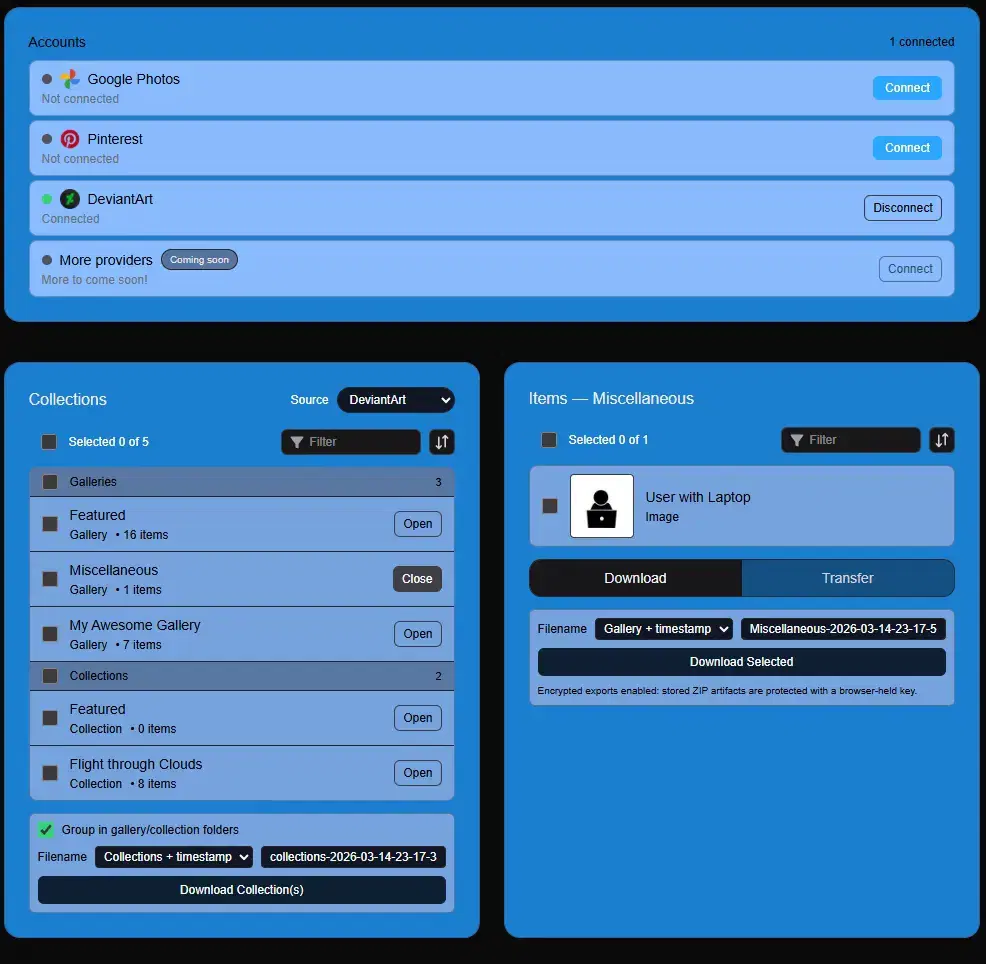
IMGLoader shows both types. Check the ones you want, or use select-all and click Download Collection(s). You can also click Open on any gallery to browse individual deviations and download specific pieces.
Organizing your download
Toggle Group in gallery/collection folders to keep each gallery's files in separate folders inside the ZIP. Without it, all files end up in a flat list. For smaller galleries the download happens right in your browser. Larger galleries are processed on secure AWS servers — just keep the tab open until it finishes.
A note about Sta.sh
DeviantArt's Sta.sh (their staging/draft area) does not have a public API for browsing stored items. This means IMGLoader cannot list or download deviations that are only in your Sta.sh. However, you can still upload to Sta.sh via IMGLoader's transfer feature — choose Deviations only and then Upload to stash as the destination.
Tips for large galleries
- Download in batches: If you have thousands of deviations, consider downloading a few galleries at a time rather than everything at once. This reduces the chance of timeouts and makes each ZIP more manageable.
- Use folder grouping: Enable “Group in gallery/collection folders” to keep your backup organized.
- Schedule regular backups: If you're actively uploading new work, consider running a backup periodically. IMGLoader doesn't have automatic scheduling, but a monthly manual backup takes only a few minutes.
Transferring instead of downloading
If you want to move your DeviantArt gallery to another platform, IMGLoader can transfer deviations directly to Pinterest or Google Photos without downloading to your device. Connect both accounts, select items, switch to the Transfer tab, and choose your destination.
Back up your DeviantArt gallery today
Don't leave years of creative work on a single platform. Download a local backup in minutes.
Open IMGLoader